Filamora Studios › Home & garden
Moon & Planet Lamp
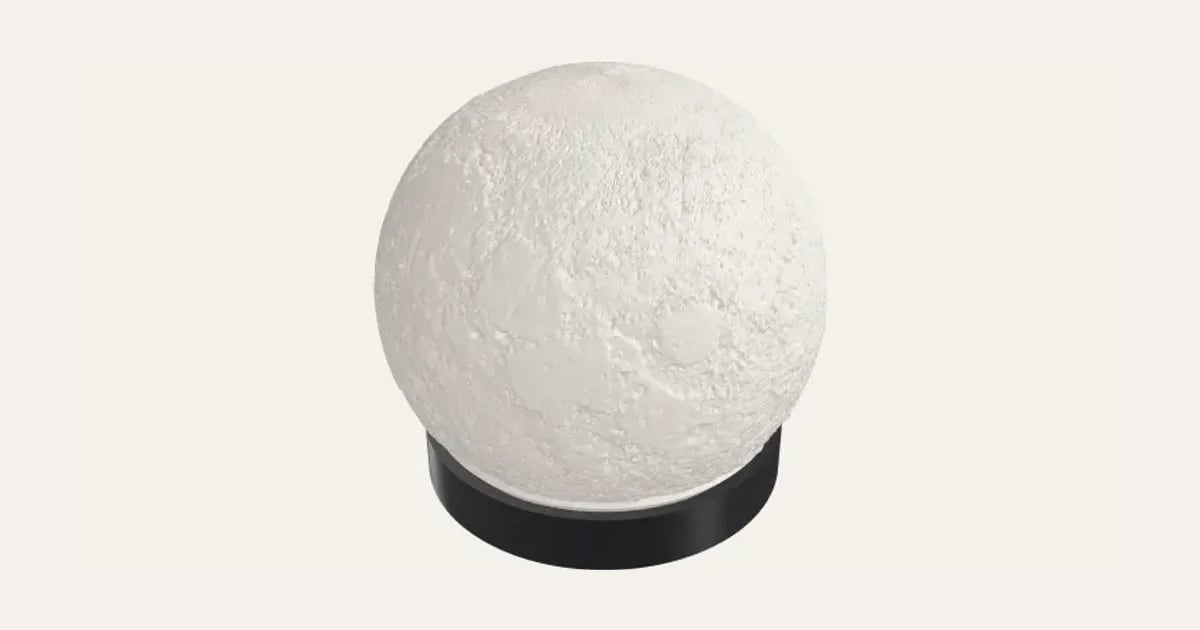
The Moon, Earth, Mars or Jupiter as a glowing lithophane ball from NASA maps: thin where the surface is bright, thick where it’s dark, so craters, seas and continents show when it’s lit. Prints opening down with no supports, on a stand with a hollow for an LED puck light and a slot for its cable.
Customise it in your browser, then download a print-ready STL, or a multi-colour 3MF. No CAD skills needed.
About the Moon & Planet Lamp
A Moon lamp, or Earth, Mars or Jupiter: a lithophane ball made from NASA’s maps of the real surface. Its wall is thin where the surface is bright and thick where it’s dark, so when a light glows inside, the Moon’s craters and seas, Earth’s continents or Jupiter’s cloud bands appear. It stands on a stand that holds an LED puck light under it.
What you can change
- Planet: the Moon, earth, mars and jupiter.
- Detail: draft, normal, fine and extra fine, for a 0.2 mm nozzle.
- Shape: cut flat at the bottom and rounder.
- Light: USB LED puck light, battery LED puck light and LED tealight.
- Pick the ball and stand colours.
- Adjust diameter, turn it, thinnest and thickest, and more.
- Turn on or off: inverted and A stand with a hollow for an LED light.
Size
About 11.9 × 11.8 × 11.3 cm (width × depth × height), one piece at the starting settings.
What you download
An STL for any slicer, and a 3MF with each colour as its own part, ready for an AMS or a filament change.
Printing it
About 114 g of PLA and about 6 hours 30 minutes to print, one piece at the starting settings (15% infill, 2 walls, 0.2 mm layers, on a Bambu Lab A1). Your slicer gives the exact figures for your printer and settings.
Print the ball opening down in white PLA, 100% infill, with no supports (it’s cut off 45° below its middle, so nothing leans out further than that; the top closes like any dome); the stand prints flat. The rounder shape is cut off lower, so it needs supports under the ball (tree supports, touching the bed only), and its opening takes a smaller light. Light it with a USB LED puck light about 60 mm across, which sits in the stand under the opening: for a USB light, press its cable up into the slot under the stand from below. Use only an LED light inside, never a real candle.
Questions
Does it need supports?
No: the ball is cut off 45° below its middle and prints standing on that cut, opening down, so nothing leans out further than 45°. The top closes in like any dome. The stand prints flat.
How should I print it?
In white PLA at 100% infill (a lithophane needs it solid to show the picture evenly), with no supports. 0.2 mm layers are fine; 0.12 mm layers show more detail, as the surface runs across them. With a 0.2 mm nozzle, choose Extra fine detail for the finest surface (the files are big).
Which light should I use?
A USB LED puck light about 60 mm across: it sits in the stand under the ball’s opening, and its cable presses up into a slot under the stand from below, so there’s no plug to thread through. A battery puck light works too. A tea light is too dim for a ball this size.
Can I choose which side faces the front?
Yes: turn it to bring round the side you want, say Europe on Earth, or the Moon’s far side.
Where do the maps come from?
NASA: the Moon from the Lunar Reconnaissance Orbiter, Earth from the Blue Marble, Mars from the Viking orbiters, and Jupiter from Cassini. They’re in the public domain.
What size is it?
About 11.9 × 11.8 × 11.3 cm (width × depth × height), one piece at the starting settings. Every size is a setting, so make it as big or small as you need.
Do I need a multi-colour printer?
No. Print it in one colour, or in colours with a filament change: the Colours line under the 3D view says at which height to change. With an AMS or another multi-colour printer, the 3MF prints it in one go.
Which printers and slicers does it work with?
Any FDM printer. The STL opens in every slicer; the 3MF keeps the colours as separate parts in Bambu Studio, Orca Slicer, PrusaSlicer and Cura. Pick your printer in the designer to check it fits the plate.
My 3MF opens all grey in Bambu Studio. What do I do?
Download the 3MF again: files made before 3 November 2026 open in one colour in Bambu Studio 2.9 and later. A new one brings its colours, and Bambu Studio asks you to match each to one of your filaments. With an older file, File → Import → Import 3D Models (Ctrl+I) often keeps the colours, or select each part and press 1, 2, 3… to put it on that filament.
Can I sell what I make?
On Pro and Ultimate you can sell the prints you make, for example on Etsy or at craft fairs, for as long as your membership is active: if it ends, stop selling them. On Free and Maker, print it for yourself or give it as a gift. The STL and 3MF files themselves are never for sharing or selling.
More Home & garden
- Plant Pot
- Name Cookie Cutter
- House Number Plaque
- Plant Markers
- Coaster Set
- Twisted Vase
- Organic Book Holder
- Sunglasses Stand
- Floating Book Display
- Shelf-Edge Book Display
- Book and Coffee Stand
- Can Holder with Handle
- Door Stop
- Ridge Bag Clip
- Name Wall Hooks
- Ridge Wall Hooks
- Ridge Shower Hook
- Ridge Door Hook
- Ridge Slide Clip
- Ridge Hanger Hook
- Ridge Toothpaste Squeezer
- Ribbed Pumpkin
- Pet Bowl Stand
- Ridge Plant Hanger
- Halloween Garland
- Medal Hanger
- Family Toothbrush Holder
- Poop-Bag Holder
- Tilted Desk Organiser
- Cookie Stamp
- 45 Record Adapter
- Record Wall Mount
- Charger and Cable Labels
- Laser-Cut Now Playing Stand
- Now Playing Record Holder
- Jewellery Stand
- Terrain Relief
- Heart Photo Frame
- Ribbed Pot Vase
- Ribbed Capsule Vase
- Ribbed Bottle Vase
- Ribbed Teardrop Vase
- Ribbed Pod Vase
- Mug Shelf
- US Road Sign
- Funny Signs
- Laser-Cut Coasters
- Laser-Cut Height Chart
- Personalised Cabinet Knobs
- Family Key Rack
- Initial Bookends