Filamora Studios › Storage & organising
Scrying Stand – Card Scanning Tower for MTG, Pokémon & TCG
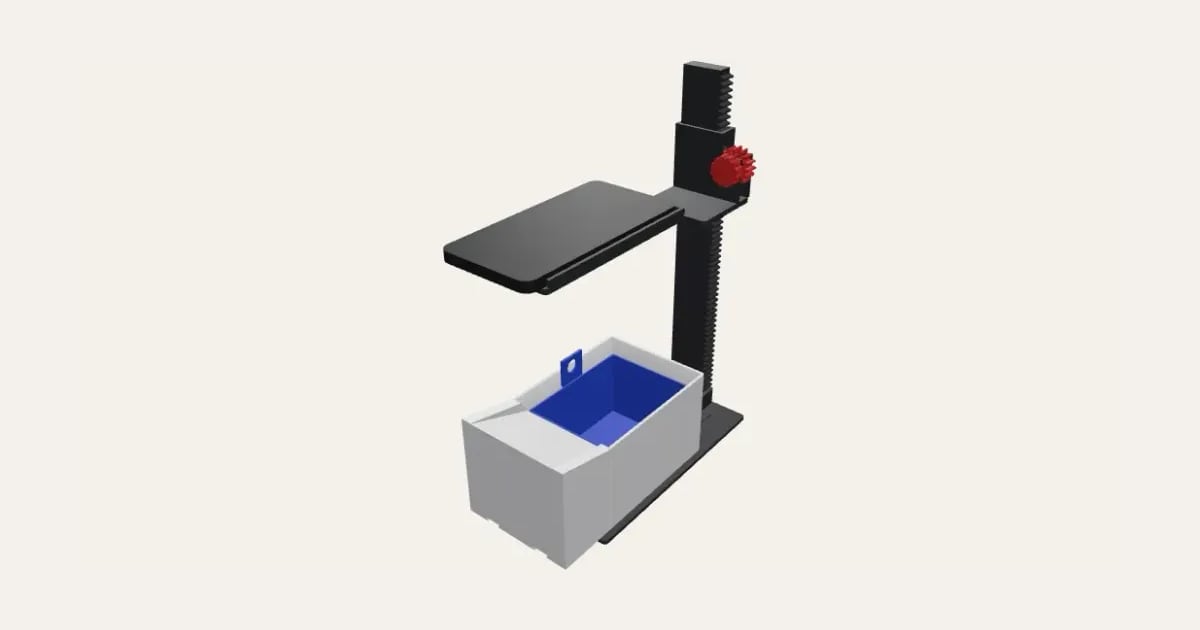
A tower for scanning piles of cards with ManaBox and other phone apps: slide each card down a ramp into a funnelled, lift-out container that lands it square under the camera; your phone, picked from popular models or measured, lies on a shelf above with its camera over the middle of the card, raised and lowered by a knob and cog on a rack up the post. Set the camera height, your phone’s width and where its camera is. Prints with no supports.
Customise it in your browser, then download a print-ready STL, or a multi-colour 3MF. No CAD skills needed.
About the Scrying Stand – Card Scanning Tower for MTG, Pokémon & TCG
A card scanning tower for ManaBox and other scanning apps, for getting through a big pile fast: slide each card face up down the ramp (or drop it in) as the last one scans, and the funnel lands it square under your phone’s camera, ready for the app. Lift the pile out in its container by the handle. Pick your phone (or measure it) and the shelf lines its camera up over the card; turn the knob to raise or lower it on its rack.
What you can change
- Cards: sleeved, bare, not sleeved, japanese size, sleeved and japanese size, bare.
- A ramp to slide each card down into it: at the front, on the right and none.
- Phone: iPhone 13 to 17, iPhone 13 to 16 Pro, iPhone 13 to 16 Pro Max and iPhone 17 Pro, and 6 more.
- Camera, seen from the screen side: top right, top left and top middle.
- All 5 colours are yours to pick.
- Adjust cards the container holds, highest the camera goes, above the cards, phone width and phone length, and more.
What you download
An STL for any slicer, and a 3MF with each colour as its own part, ready for an AMS or a filament change.
Printing it
The base, slide, container and shelf print upright, the post on its back (so its teeth print flat), the pinion flat and the knob standing on its end; no supports. Push the post into its socket, slide its collar on from the top with the pinion’s window over the rack, hold the pinion between the ears and push the knob’s axle through the front ear, the pinion and into the back ear. Turn the knob to set the camera’s height: the snug back ear holds it there.
Ideas for using it
- Scanning a booster box or a bulk lot into ManaBox, Dragon Shield or TCGplayer.
- Pricing a collection before selling it.
- Logging a Pokémon collection a stack at a time.
- A shop counter scanner for buy-ins.
Questions
Will it fit my phone?
Pick it from the list (iPhone, including the 17 Pro’s camera bar across the back, Pixel and Galaxy models) for its width in a slim case and where its main camera is; those are close, but check against yours with a ruler. For another phone, or a chunky case, measure its width and length, the middle of the main camera from the phone’s side and top (seen from the screen side), and the camera bump’s size. The shelf is as long as the phone, so it can’t tip off, and has a window the bump sits in, so it lies flat; the main camera lands over the middle of the card.
How high should the camera be?
About 120–140 mm suits most phones’ main camera: high enough to focus and see the whole card. If your app asks you to move back, raise it; if the card looks small, lower it.
How do I raise and lower the camera?
Turn the knob: it turns a cog in a rack up the post, and the shelf rides up and down on its collar. The axle is snug in the back ear, so it stays where you leave it. Set how high it can go in the designer; that sets the post’s length.
How does the cog go together?
Push the post into its socket, slide the shelf’s collar down over it with the window over the rack, hold the cog between the two ears and push the knob’s axle through the front ear, the cog and into the back ear. If it’s too stiff to turn, ease the back ear’s hole with a drill bit; if it slips, a drop of glue on a paper shim tightens it.
How do I scan with it?
Open your scanning app with the phone on the shelf, and lay the first card face up on the ramp: it slides down into the container. As it scans, slide the next one down on top. The funnel round the container’s mouth lands each card square in the same place, so the app sees one after another. Without a ramp, just drop them in.
How do I take the cards out?
Lift the container out by the handle up its side, and tip the pile out; or pull the slide out on its rails first. The slide runs on two dovetail rails, so it can’t lift off, and stops against the post with the card right under the camera.
Does it need supports?
No. The base, slide, container and shelf print upright, the post lying on its back (so the rack’s teeth print flat, corner to corner if it’s long), the cog flat and the knob on its end.
Do I need a multi-colour printer?
No. Print it in one colour, or in colours with a filament change: the Colours line under the 3D view says at which height to change. With an AMS or another multi-colour printer, the 3MF prints it in one go.
Which printers and slicers does it work with?
Any FDM printer. The STL opens in every slicer; the 3MF keeps the colours as separate parts in Bambu Studio, Orca Slicer, PrusaSlicer and Cura. Pick your printer in the designer to check it fits the plate.
Can I sell what I make?
On Pro and Ultimate you can sell the prints you make, for example on Etsy or at craft fairs, for as long as your membership is active: if it ends, stop selling them. On Free and Maker, print it for yourself or give it as a gift. The STL and 3MF files themselves are never for sharing or selling.
More Storage & organising
- Parametric Box
- Filament Swatches
- SKÅDIS Accessories
- Battery Organiser
- Game & Memory Card Holder
- Card Deck Box
- Toploader & Sleeve Desk Caddy
- Toploader & Sleeve Vertical Desk Caddy
- TCG Sorting Box Dividers
- Card Sorting Tray
- MTG Stackable Modular Storage System
- Spool Hub Adapter
- Drawer Organiser
- Smart Drawer Organiser
- Jewellery Box with Sliding Lid