Filamora Studios › Paper printables
Kindle Insert
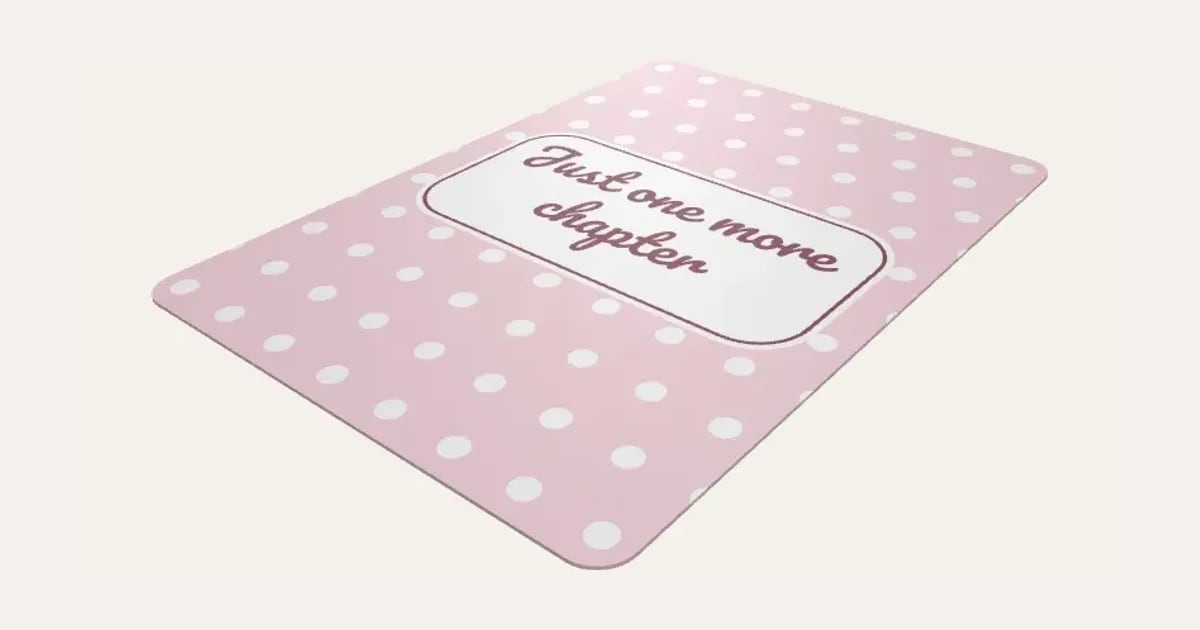
A picture to slip behind your Kindle or Kobo in a clear case, cut to fit your model: polka dots, florals, stars, gingham and more, or your favourite bookish words filling it, with a line like Just one more chapter on a label. Print it on paper and cut it out, or 3D print it as a thin plate with the picture inlaid flush.
Customise it in your browser, then download a print-ready STL, or a multi-colour 3MF. No CAD skills needed.
About the Kindle Insert
A Kindle insert: a picture to slip behind your Kindle or Kobo in a clear case, cut to fit your model. Polka dots, florals, stars, gingham and more, or your favourite bookish words filling it, with a line like Just one more chapter on a label. Print it on paper and cut it out, or 3D print it as a thin plate with the picture inlaid flush.
What you can change
- Type your own text.
- Kindle or Kobo: kindle Paperwhite, Signature or Colorsoft, kindle Paperwhite or Signature, kindle Paperwhite and kindle, and 5 more.
- Picture: A pattern, words filling it, your photo and plain.
- Pattern: polka dots, hearts, stars and moons and stars, and 8 more.
- Text font: 26 to choose from, from script to stencil.
- Where the text goes: middle, top and bottom.
- Label behind the text: rounded box, pill, oval and none.
- Paper: A4, A3, A5 and US Letter.
- All 5 colours are yours to pick.
- Adjust adjust all round, pattern size and text size.
- Turn on or off: A line round the label and crop marks at the corners.
Size
About 12.5 × 17.4 × 0.1 cm (width × depth × height), one piece at the starting settings.
What you download
An STL for any slicer, and a 3MF with each colour as its own part, ready for an AMS or a filament change; or a PDF to print on paper or card and cut out.
Printing it
About 22 g of PLA and about 1 hour 20 minutes to print, one piece at the starting settings (15% infill, 2 walls, 0.2 mm layers, on a Bambu Lab A1). Your slicer gives the exact figures for your printer and settings.
The sizes are the usual clear-case insert sizes, a little under the e-reader itself: if your case is snug or loose, adjust it all round. On paper: print the PDF (or the image) at 100% (actual size) on 200–250 gsm card or heavy photo paper (plain 80 gsm paper wrinkles in a case), cut the straight edges between the crop marks, then round the corners with a corner punch, or along the fine grey line. On a 3D printer: it prints face down, mirrored, so the smooth side off the plate faces out through the case, with a filament change for each colour in the first few layers (a smooth PEI or glass plate gives the best face).
Ideas for using it
- Change the look of your e-reader with the seasons.
- A gift for a reader with a new Kindle.
- Your favourite authors or books as the words.
- A cheap way to try a look before buying a printed case.
Questions
What size is it?
About 12.5 × 17.4 × 0.1 cm (width × depth × height), one piece at the starting settings. Every size is a setting, so make it as big or small as you need.
Do I need a multi-colour printer?
No. Print it in one colour, or in colours with a filament change: the Colours line under the 3D view says at which height to change. With an AMS or another multi-colour printer, the 3MF prints it in one go.
Which printers and slicers does it work with?
Any FDM printer. The STL opens in every slicer; the 3MF keeps the colours as separate parts in Bambu Studio, Orca Slicer, PrusaSlicer and Cura. Pick your printer in the designer to check it fits the plate.
Can I sell what I make?
On Pro and Ultimate you can sell the prints you make, for example on Etsy or at craft fairs. On Free and Maker, print it for yourself or give it as a gift. The STL and 3MF files themselves are never for sharing or selling.
More Paper printables
- Phone Case Insert
- Tablet Case Insert
- Definition Print
- Family Tree Print
- Letter Tile Family Print
- Gift Ticket
- Scratch to Reveal Card
- Calendar Print
- Coordinates Print
- Subway Word Art
- Star Map
- Map Print
- Street Card Print
- Family Print
- Text Poster
- Birth Stats Poster
- Picture Bookmarks
- Labels & Tags
- Reading Tracker
- Reward Chart
- Name Colouring & Tracing
- Word Search
- Birth Announcement Print
- Letter from Santa
- Moon Phase Print
- Race Route Print
- Family Recipe Print
- Pet House Rules Print
- Our Story Timeline
- Song Lyric Record Print
- New Home Print